Experiencing sluggish performance due to your security software can be incredibly frustrating, especially when you depend on your computer for work or daily tasks. Security tools are critical for safeguarding your system, but they can sometimes cause high CPU and disk usage. If you have run into issues like antimalware service executable high memory, you are not alone. Identifying the cause and applying practical solutions can restore your computer’s responsiveness without sacrificing protection.
Understanding why your security tools are hogging resources is the first step toward resolving this widespread problem. Factors such as real-time scanning, frequent updates, and potential conflicts with other software can drastically affect system performance. By making a few informed adjustments and staying vigilant about system health, you can strike an ideal balance between strong security and optimal speed.
Understanding the Causes of High Resource Usage
Modern security software relies on frequent scanning and updates to ensure your computer stays protected. Managed IT Services providers note that these vital processes can sometimes demand a significant share of your hardware’s capabilities. Common factors contributing to elevated CPU and disk consumption include:
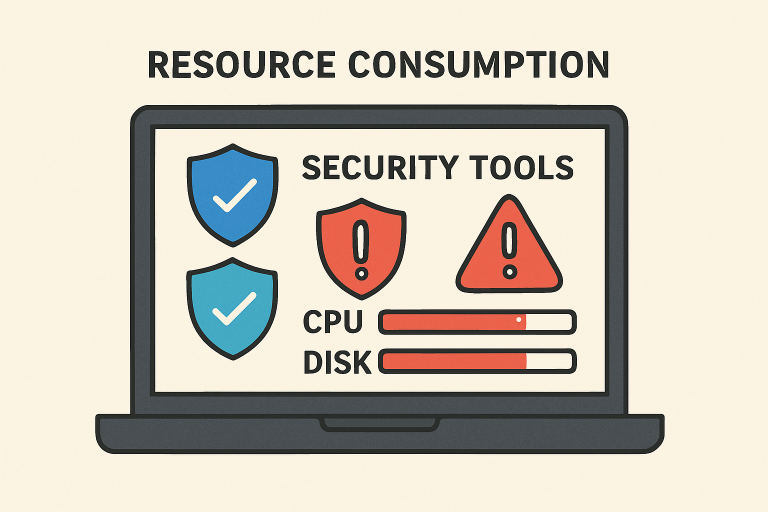
- Real-Time Scanning: Constant background monitoring of file activity and system behavior may sharply increase resource usage, especially if you regularly open or transfer large files.
- Scheduled Scans: Running complete system scans during peak hours can interrupt productivity and slow other essential programs.
- Frequent Updates: Antivirus and antimalware tools often download new virus definitions and software patches, briefly increasing CPU and disk activity.
- Conflicting Software: Using multiple protective tools simultaneously can result in redundant scanning and competition for system resources.
Practical Solutions to Mitigate High CPU and Disk Usage
1. Schedule Scans During Off-Peak Hours
For most users, the default time for a full system scan might coincide with working hours or when you need your computer to run smoothly. Alter your antivirus software’s schedule to conduct comprehensive scans late at night or during periods of low computer activity. This way, you avoid major slowdowns during peak usage. For step-by-step guidance, software support pages from providers like Microsoft offer instructions on configuring Windows Security scan times.
2. Optimize Real-Time Protection Settings
Adjusting the real-time protection in your security software can dramatically improve overall performance. For example, some programs let you exclude certain folders from continuous scanning. Exclude directories containing trusted large files, such as video projects or digital asset collections, to limit unnecessary checks. Similarly, you can reduce scan intensity in advanced settings, lowering CPU consumption while still providing baseline security. ([support.microsoft.com]
3. Keep Your Security Software Updated
Vendors frequently release new versions that improve both security and efficiency. Using outdated versions can lead to unresolved bugs or compatibility issues that sap system resources. Set your security software to update automatically to ensure you always get the latest performance enhancements. Leading cybersecurity sites like Kaspersky recommend regular updates as part of standard computer hygiene.
4. Use Lightweight Security Solutions
Not all antivirus programs are created equal when it comes to resource demands. If you find your current solution too burdensome, research lighter alternatives with a proven track record of reliable protection and low system impact. Reviews from reputable publications such as PCMag can guide your search for the best options.
5. Check for Malware
Sometimes, malware disguises itself as legitimate processes, unleashing hidden tasks that consume CPU cycles and disk space. Conduct a full scan with your cybersecurity software to root out any such threats. Windows Defender or your chosen product provides the necessary tools to fully check your system and eradicate malicious code that may be responsible for performance drops.
6. Update System Drivers
Driver issues, particularly related to storage and chipset, can exacerbate high disk and CPU usage. Always ensure your drivers are current by checking for updates through manufacturer software or the Windows Update feature. Some driver management utilities also streamline this process, reducing the likelihood of performance troubles caused by outdated hardware compatibility.
7. Limit Startup Programs
Many applications attempt to launch on startup, immediately utilizing system resources even if you do not need them right away. Open your Task Manager (in Windows) or use built-in tools on macOS to review and disable unnecessary startup programs. This adjustment allows your operating system to allocate more resources toward essential applications, including your security software.
8. Adjust Power Settings
Configuring your computer’s power plan can have a meaningful effect on how aggressively your CPU is tasked. Selecting a balanced or power-saving mode (particularly on laptops) can help curtail resource use and extend hardware lifespan. Make these changes through your device’s control panel or system settings, tailoring the power scheme to your activity level.
Final Thoughts
Security tools provide critical defense, but unchecked high CPU and disk usage can detract from your computing experience. By implementing the strategies detailed above, you can enjoy both robust protection and responsive system performance. Remember, regular updates, mindful configuration, and attentive maintenance are essential for long-term efficiency and peace of mind. Prioritize both your computer’s security and its user experience for the best results.